Your administration, in everyday language

From a question to insight and action

Log time, prepare a draft invoice or discover what your work earns. With UurKlus Assist, type or say what you want to do. Clickable examples help you get started, while financial insights bring your own figures together.

Read the full Assist guide

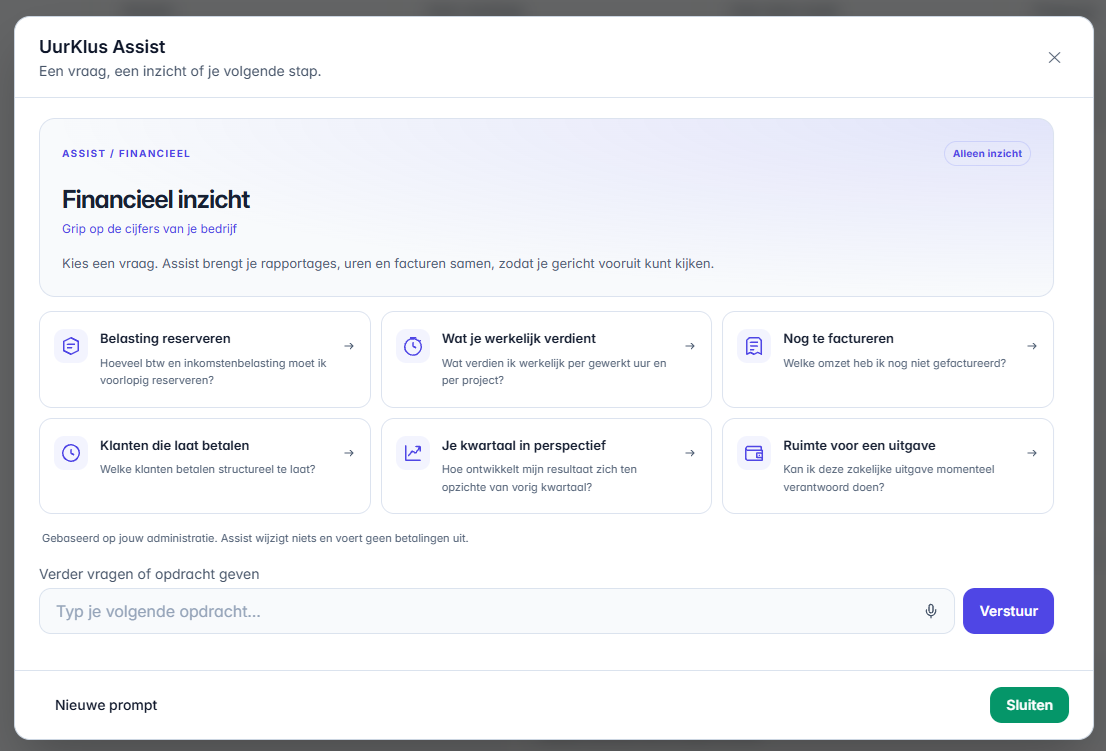
The six financial questions in UurKlus Assist, shown in Dutch
VAT, returns and document retention Read the tax guide on VAT profiles, KOR, EC Sales Lists, annual review and return reconciliation, with Tax Administration sources.

Your administration, in everyday language

Start with help or advice

Choose an example that fits your question. Assist helps with an answer, a calculation or the details still needed to prepare an action. The screenshots below show the Dutch interface.

Cards for the six financial insights, shown in Dutch

Six questions about your business figures

Explore tax reserves, result per hour, work to invoice, payment behaviour, result trends and room for an expense. Figures come with explanations and links to your own reports. These insights do not change your records.

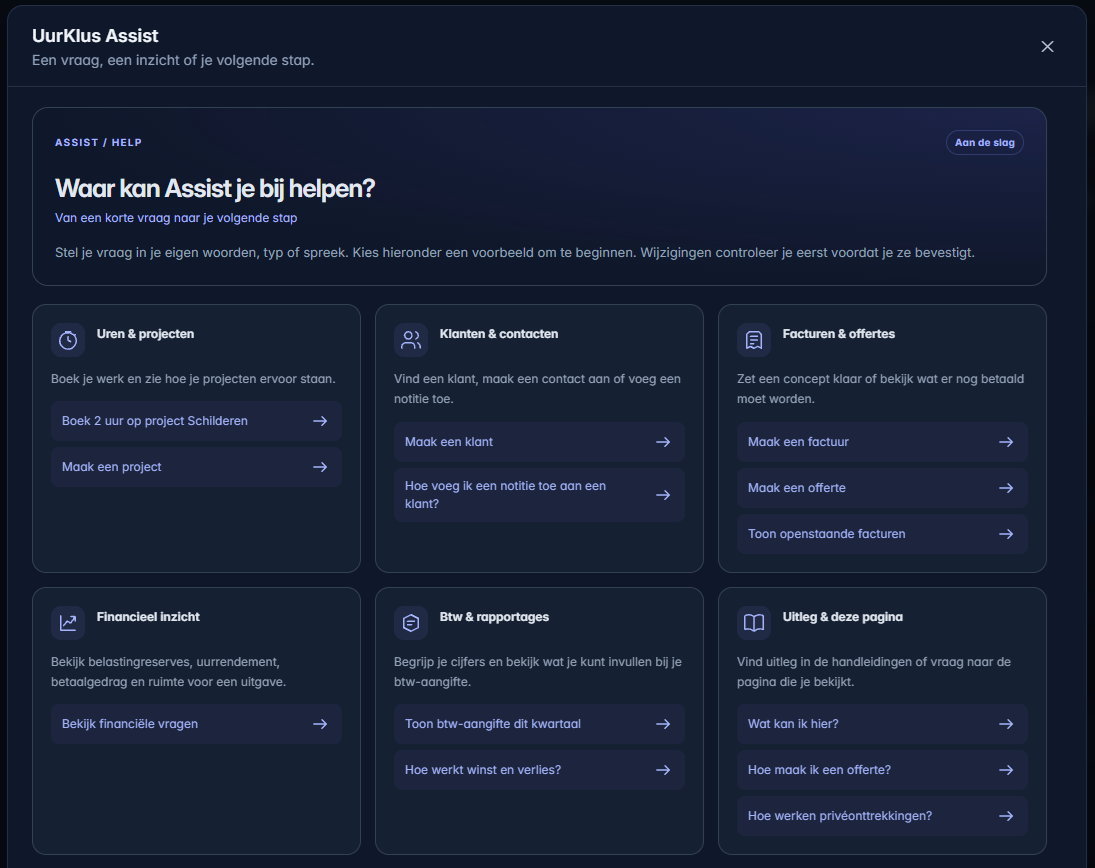
Help with clickable command and question examples, shown in Dutch

Click an example and continue

Help groups the available options into six topics. A short command such as 'Create a project' is enough to get started: select the client and enter the project name next. A how-to question returns instructions from the guides.

UurKlus Assist

A clearer view of your daily work

You do not need to memorise commands. Start with help, click an example and complete any missing details. Or type advice for six financial questions about your business. Answers appear immediately; you review and confirm before saving records.

Less searching and typing

Log time, find clients, add notes and prepare draft invoices or quotes. Use Dutch or English, and speak short commands.

Understand what your figures mean

Assist brings reports, hours and invoices together. You see the period, the amounts and an explanation of what is included, so you can check the figures and ask more focused questions.

Review before saving

Complete missing information in clearly labelled fields. Select existing clients and projects from a searchable list. Then review the summary and confirm the action.

An assistant for everyday administration

What can you do with it?

Everyday actions and help on the page

Create clients and projects, log time or add a client note. A draft invoice for a project can include available billable hours; a draft quote starts empty. Ask 'What can I do here?' for help with the open page. A how-to question returns instructions from the guides.

Set aside for tax

View VAT for the selected period and a separate income tax savings scenario. The scenario uses your positive recorded result from 1 January through the displayed end date. You can change the default 30%. Personal tax circumstances and amounts already paid are not included; also check what you have already set aside.

What does an hour of work earn?

See recorded result per working hour, including travel and non-billable time and excluding breaks. Each project uses its linked revenue and costs. General costs are not allocated across projects, and uninvoiced work can lower the hourly figure. The result is before income tax.

Work still to be invoiced

View billable hours without an invoice, potential fixed project fees and amounts in draft invoices separately. Fixed prices count once; amounts exclude VAT. This highlights work that needs invoicing. Check progress, instalments and agreements first: the overview does not create or send invoices.

Client payment behaviour

Assist reviews invoices with a due date in the past twelve months. See invoices paid late, those still overdue and average delays where payment dates are known. One delay is a signal; two or more are marked as repeated. Missing payment dates leave an incomplete picture.

Compare your results

Compare revenue, expenses and result with the previous period. The default is the current quarter against the previous quarter. If the period is still running, Assist also compares a similar number of elapsed days. This helps you assess a partial quarter. The figures are not a forecast.

Room for a business expense

Enter the expense including VAT, current available cash, upcoming commitments, required tax reserves and your buffer. Assist calculates what remains. The recorded bank balance is shown for reference and is not a live balance. The outcome applies to your inputs; no purchase or payment is made.

VAT figures for a clear period

Ask for the VAT return for last quarter, for example. Assist shows relevant boxes, rounded filing amounts, check totals and any warnings. A running period is provisional. Review your records and the figures before filing through Mijn Belastingdienst Zakelijk yourself.

Workflow

How it works in UurKlus

1

Ask your question

Type help for examples, advice for financial insights, or enter a command such as 'Book 2 hours on project Bathroom for yesterday'. Replace the project name with your own.

2

Complete and review

Select the right client or project and complete missing details. For a financial answer, check the period, notes and source links. Tax and spending scenarios let you adjust amounts or a percentage.

3

Confirm or ask more

Creating records requires a separate confirmation. Financial calculations appear immediately. You can then ask another question or open the relevant project, client or report to take the next step.

Frequently asked questions

Do I need to type a complete command?
No. Help offers clickable examples. After 'Create a project', you can fill in the client and project name. The searchable lists include your active clients and projects, even when there are more than five. You see the summary again before saving.
Does Assist do everything automatically?
Answers and financial insights appear immediately. Saving records requires your confirmation. Invoices and quotes are created as drafts; you review and send them yourself. Assist does not make payments or file VAT returns.
Are financial insights personal tax advice?
No. They help you understand your records. The income tax amount is an adjustable savings scenario; personal circumstances are not calculated. Result per hour is before income tax, and a spending scenario uses your inputs. Always read the notes alongside the figures.
Does advice use the filters on my current page?
The six financial insights consider your administration as a whole and do not automatically inherit page filters. Specify a period for tax reserves, result per hour and result comparisons. Unbilled work covers the position through today, payment behaviour covers twelve months and spending room uses your current inputs.
Can I use Dutch and English, including voice?
Yes. Type commands or speak a short recording. Start the microphone yourself and stop when you are done; it also stops automatically after about 15 seconds. Check names and numbers in particular. Responses and speech processing follow your administration's language setting.
Which plan includes financial insight?
Financial insight and commands for invoices, quotes and VAT are available from Starter. The free time tracking plan supports time commands and documentation questions. At a monthly usage limit, short typed time commands and documentation questions remain available; voice is temporarily unavailable.